
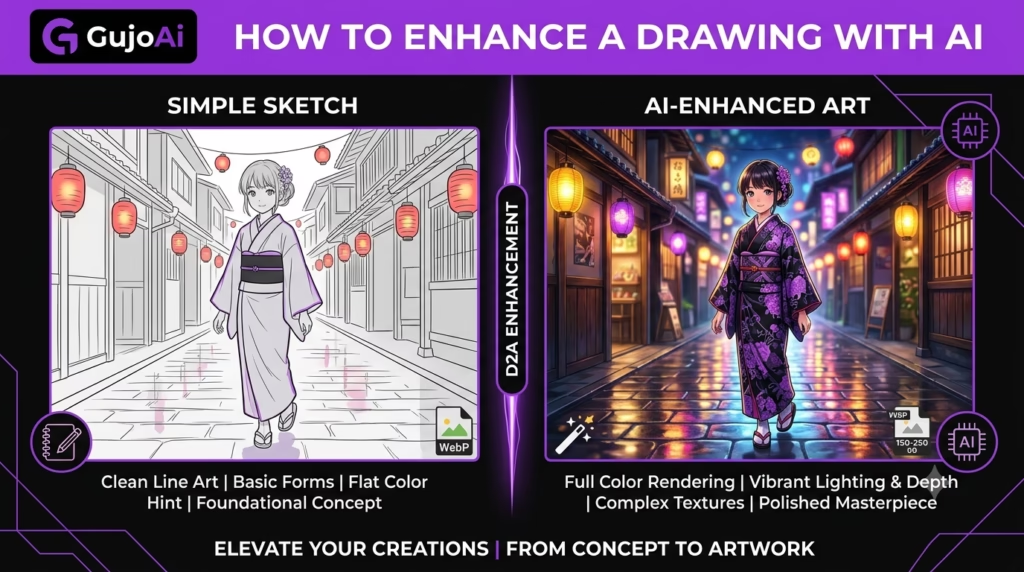
How to Enhance a Drawing With AI
You can enhance a drawing with AI by capturing a clean scan or photo, choosing how much of the original line work should remain and asking an AI drawing enhancer to improve clarity, colour, shading or finish. The goal should be specific: clean pencil noise, strengthen lines, explore a colour direction or develop a rough concept—not simply “make it better.”
What Is an AI Drawing Enhancer?
GujoAi includes a browser-based Drawing Enhancer workspace for creators who want to develop sketches and illustrated ideas without rebuilding every detail manually. This guide shows you how to prepare a drawing, choose an enhancement direction, protect important character features and review the output. AI can speed up experimentation, but your original drawing and creative decisions should remain the foundation of the work.
An AI drawing enhancer is a tool that uses a sketch or illustration as visual guidance and creates a cleaner, more detailed or differently finished version. Depending on the tool, it may improve resolution, clarify line work, reduce paper texture, add colour, develop shading or interpret a loose sketch as polished digital art.
“Enhancement” can mean several different tasks:
- Cleaning a photographed pencil sketch
- Strengthening faint or uneven lines
- Removing paper shadows and camera noise
- Adding flat colour beneath line art
- Exploring lighting and material ideas
- Turning a rough pose into a more developed concept
- Enlarging a small digital drawing for presentation
These are not the same operation. A photo enhancer may sharpen everything, including unwanted paper grain. An image upscaler enlarges the file but may not understand the drawing’s intended design. A generative sketch-to-image tool can add large amounts of new content and may change the character.
Decide which problem you need to solve before choosing a setting. If the line art is already correct, use a light cleanup. If the sketch is an early idea, a stronger interpretation can help you explore alternatives—but should not be mistaken for a faithful restoration.
How Does AI Enhance a Sketch or Illustration?
The tool analyses the visible lines, shapes, contrast and composition in the source. It then predicts a cleaner or more detailed result based on the selected mode and any written instruction.
What can the AI preserve?
With a clear source and moderate enhancement, it may retain the pose, silhouette, facial direction, clothing shapes and major background elements. Strong, unbroken lines are easier to follow than faint construction marks.
What can the AI change?
It may alter facial proportions, hands, accessories, line weight, clothing details and even the character’s identity. A rough circle that the artist intended as a badge could become a button or jewellery. Generative enhancement interprets ambiguity rather than asking the artist what it means.
Why does the amount of guidance matter?
If you provide only “enhance this drawing,” the model must decide what “better” means. A direction such as “clean the pencil noise, preserve the exact pose and clothing shapes, use thin dark line art, no added objects” gives it a more measurable task.
For colour development, describe the palette and light: “muted blue jacket, warm skin tones, soft evening light from the left.” For a line-art cleanup, avoid unnecessary style descriptions that invite a full redesign.
AI output should be treated as a proposed edit. Keep the source visible and compare important areas instead of judging only the overall polish.
How Should You Prepare a Drawing for AI Enhancement?
The quality of the digital capture sets the limit for the next steps. AI cannot reliably distinguish an intended line from every crease, shadow or stain.
Scan when possible
A flatbed scanner gives even light and keeps the page square. Save a high-quality master before contrast adjustments. The Library of Congress scanning guide offers useful principles for creating and preserving digital copies.
Photograph the page carefully
If you use a phone, place the drawing on a flat surface near soft daylight. Hold the camera parallel to the paper so a square becomes a square rather than a trapezoid. Avoid a shadow from the phone or your hand.
Use the highest normal camera resolution. Do not use portrait blur, beauty filters or strong automatic sharpening. Capture a colour reference if the paper tone or media matters.
Clean only obvious problems first
Crop the desk, rotate the page and correct strong perspective. Adjust white balance so the paper is not accidentally yellow or blue. Do not erase construction lines if they help explain the form you want the enhancer to preserve.
Increase line separation
Faint pencil on grey paper is hard to interpret. A gentle levels or contrast adjustment can separate the line from the background. Avoid crushing every light mark into black, especially when the sketch uses subtle shading.
Save multiple versions
Keep the untouched scan, a cleaned input and the enhanced output as separate files. This makes the process reversible and lets you return to your own line work if the AI changes too much.
For client art, sketches of identifiable people or unpublished concepts, confirm that the online tool’s storage and privacy terms fit the project before uploading.
How Do You Enhance a Drawing Step by Step?
Start by writing one sentence that defines success, such as “clean the line art without changing the character design.”
- Choose the source. Use the sharpest scan, digital export or carefully photographed page.
- Preserve the original. Duplicate the file and keep the raw version unchanged.
- Prepare the capture. Crop, rotate and correct uneven lighting or strong paper colour.
- Decide the enhancement type. Choose cleanup, line strengthening, colour development, detail exploration or resolution improvement.
- Open a drawing workspace. The GujoAi Drawing Enhancer is intended for a browser-based upload and enhancement flow.
- Upload the drawing. Use a supported, high-quality PNG, JPEG or WebP file.
- Give a controlled direction. State what must stay the same and what may change. Mention pose, face, costume, line style, palette or lighting only when relevant.
- Use moderate strength first. A lighter pass makes it easier to protect the original design.
- Generate a preview. Compare the output with the source, not with an imagined ideal.
- Check the design anchors. Review silhouette, face, hands, clothing, props, perspective and any recurring character feature.
- Revise one variable. Reduce strength if identity changed; clarify the prompt if the wrong details were added.
- Finish manually. Correct lines, colours and edges in an editor, then export the proper size and format.
Current publishing check: Test the live Drawing Enhancer with an account before publishing. If the workspace still states that it is a frontend preview or that real API enhancement will be added later, keep this note in the draft and do not promise finished downloads.
How Can You Preserve Your Original Style?
Polish is not the same as authorship. A technically clean output can lose the gesture, asymmetry or line rhythm that made the drawing yours.
Identify the non-negotiable features
List the design anchors before generation: the character’s face shape, hairstyle, eye spacing, clothing silhouette, prop and pose. Check those areas first in every output.
Use the lowest useful transformation
If you only need cleaner lines, do not ask for a finished cinematic scene. Strong generative settings give the model more freedom to redesign. Increase strength only when exploration is the purpose.
Describe qualities, not a named artist
Use directions such as “loose graphite texture,” “thin ink lines,” “flat two-tone shadows” or “soft pastel colour.” Avoid asking for an exact imitation of a living artist or protected franchise. This creates a clearer and more responsible brief.
Keep your own corrections visible
Draw over the output, restore shapes and adjust the palette. The final piece becomes stronger when AI suggestions pass through your judgement rather than being accepted untouched.
Build consistency with references
For a character series, create a simple reference sheet with front view, side view, palette and important accessories. Use the same cleaned source quality and prompt structure. Even then, compare every image because small features can drift.
Record the process
Save filenames, prompt versions, enhancement strength and manual changes. For a portfolio or client, disclose AI assistance when the agreement, platform or audience expects it. Do not present someone else’s drawing as your original simply because a model transformed it.
AI Drawing Enhancement vs Manual Editing
| Factor | AI drawing enhancer | Manual editing |
|---|---|---|
| Speed | Fast for experiments and first passes | Slower for detailed cleanup |
| Starting skill | Beginner-friendly | Drawing and software skill help |
| Design control | Can change ambiguous details | Full control over each mark |
| Consistency | May vary between outputs | Easier with layers and a style guide |
| Best use | Exploration, cleanup tests and colour directions | Final line art, exact character work and client revisions |
Use AI when you want to test possibilities quickly or create a reference for further work. Use manual editing when the design must remain exact, the drawing has subtle intentional marks or a client needs predictable revisions.
A hybrid approach is often practical: scan the sketch, clean basic capture problems, generate one or two enhancement directions, choose only the useful ideas and redraw the final details yourself. If the final image needs more pixels, use an AI image upscaler after the design is correct.
AI should not be used to “finish” a commissioned sketch created by another artist unless the contract and artist allow it. Enhancement does not remove copyright, credit or permission requirements.
What Mistakes Should You Avoid?
The biggest mistake is applying a strong effect before deciding what must be preserved. This lets visual polish hide design changes.
Avoid these problems:
- Photographing the page at an angle under uneven light
- Uploading a low-resolution screenshot instead of the original scan
- Asking for general “improvement” without defining the task
- Using high transformation strength for simple line cleanup
- Ignoring changes to face, hands, costume and props
- Enhancing every draft and losing the value of quick sketching
- Upscaling before choosing the correct design
- Deleting the raw scan or original layered file
- Copying a living artist’s exact style or a protected character
- Editing another creator’s work without permission
- Sending confidential client concepts to a tool without checking privacy
Do not expect AI to repair weak anatomy with full creative control. It may replace the pose instead of solving it. Use references, redraw the structure or ask for feedback when learning the skill matters.
Also watch for overprocessing: overly sharp lines, plastic gradients, random texture, invented text and symmetrical faces that remove expression. Zoom out to judge the composition, then zoom in for errors. Both views matter.
Frequently Asked Questions
How can I enhance a drawing with AI?
Scan or photograph the drawing clearly, define whether you need cleanup, colour, detail or enlargement and upload it to an AI drawing enhancer. Start with moderate strength and compare the result with the original design anchors.
Can AI turn a sketch into finished art?
AI can produce a more developed interpretation of a sketch, but it may change faces, hands, clothing and composition. Treat it as a creative draft and make manual corrections when accuracy or authorship matters.
What is the best file for an AI drawing enhancer?
A high-resolution PNG is a strong choice for clean line art, while a high-quality JPEG can work for photographed pencil or painted work. Use the original scan or export instead of a compressed screenshot.
Can an AI enhancer clean pencil lines?
It may reduce paper noise and strengthen visible lines, especially from an evenly lit scan. Faint construction marks and subtle shading can disappear, so use a light setting and preserve the original file.
Does enhancing a drawing change its copyright?
AI processing does not automatically give you rights to someone else’s source drawing. Ownership and permitted use depend on the original work, platform terms, local law and any agreement with the creator or client.
Ready to create something remarkable?
To enhance a drawing with AI, begin with a clean capture, define one improvement and protect the features that make the design yours. Use AI for controlled exploration, then finish important details with human judgement. Create a free GujoAi account for 10 welcome credits and try the Drawing Enhancer after real processing has been enabled and tested.